
Note
Go to the end to download the full example code. or to run this example in your browser via Binder
Load and Plot from a File#
Read a dataset from a known file type.
We try to make loading a mesh as easy as possible - if your data is in one
of the many supported file formats, simply use pyvista.read() to
load your spatially referenced dataset into a PyVista mesh object.
The following code block uses a built-in example file and displays an airplane mesh.
import pyvista as pv
from pyvista import examples
help(pv.read)
Help on function read in module pyvista.core.utilities.fileio:

read(filename: 'PathStrSeq', force_ext: 'str | None' = None, file_format: 'str | None' = None, progress_bar: 'bool' = False, *, cls: 'type[DataObject] | None' = None, validate: 'bool | None' = None) -> 'DataObject'
    Read any file type supported by ``vtk`` or ``meshio``.

    Automatically determines the correct reader to use then wraps the
    corresponding mesh as a pyvista object.  Attempts native ``vtk``
    readers first then tries to use ``meshio``. :py:mod:`Pickled<pickle>`
    meshes (``'.pkl'`` or ``'.pickle'``) are also supported.

    Remote URIs (``https://``, ``s3://``, etc.) are downloaded to a
    temporary file automatically.  Install ``fsspec`` for full protocol
    support (``pip install pyvista[io]``); ``pooch`` is used as a
    fallback for HTTP(S).  Third-party reader plugins registered via
    :func:`pyvista.register_reader` are also checked.

    See :func:`pyvista.get_reader` for list of vtk formats supported.

    .. include:: /api/utilities/mesh_io.rst

    .. note::
       See https://github.com/nschloe/meshio for formats supported by
       ``meshio``. Be sure to install ``meshio`` with ``pip install
       meshio`` if you wish to use it.

    .. versionadded:: 0.45

        Support reading pickled meshes.

    .. warning::

        The pickle module is not secure. Only read pickled mesh files
        (``'.pkl'`` or ``'.pickle'``) you trust. See :py:mod:`pickle`
        for details.

    See Also
    --------
    pyvista.DataObject.save
        Save a mesh to file.

    Parameters
    ----------
    filename : str, Path, Sequence[str | Path]
        The string path to the file to read. If a list of files is
        given, a :class:`pyvista.MultiBlock` dataset is returned with
        each file being a separate block in the dataset.

    force_ext : str, optional
        If specified, the reader will be chosen by an extension which
        is different to its actual extension. For example, ``'.vts'``,
        ``'.vtu'``.

    file_format : str, optional
        Format of file to read with meshio.

    progress_bar : bool, default: False
        Optionally show a progress bar. Ignored when using ``meshio``.

    cls : type, optional
        Expected concrete type of the returned mesh. When given, the
        result is checked with :func:`isinstance` and a
        :class:`TypeError` is raised on mismatch. Static type checkers
        (``mypy``, ``pyright``) use this to narrow the return type to
        ``cls`` directly, so callers do not need ``typing.cast`` or a
        manual ``assert isinstance`` to access subclass-specific
        attributes, e.g. ``pv.read('file.vtu', cls=pv.UnstructuredGrid)``.

    validate : bool, optional
        Forwarded to :func:`pyvista.wrap` as the ``validate`` keyword when
        using a ``vtk`` reader. When ``None`` (the default), honors
        :attr:`pyvista.core.config.Config.validate_on_wrap`. Pass ``False`` to
        skip the cheap array-length sanity check on very large trusted
        files. Has no effect for ``meshio`` or pickle code paths.

        .. versionadded:: 0.48

    Returns
    -------
    pyvista.DataSet | pyvista.MultiBlock
        Wrapped PyVista dataset. When ``cls`` is given, an instance of
        ``cls`` is returned instead.

    Examples
    --------
    Load an example mesh.

    >>> import pyvista as pv
    >>> from pyvista import examples
    >>> mesh = pv.read(examples.antfile)
    >>> mesh.plot(cpos='xz')

    Narrow the return type to a specific class. This avoids the need for
    a manual ``cast`` when working with type checkers such as ``mypy``
    or ``pyright``.

    >>> mesh = pv.read('mesh.vtu', cls=pv.UnstructuredGrid)  # doctest:+SKIP

    Load a vtk file.

    >>> mesh = pv.read('my_mesh.vtk')  # doctest:+SKIP

    Load a meshio file.

    >>> mesh = pv.read('mesh.obj')  # doctest:+SKIP

    Load a pickled mesh file.

    >>> mesh = pv.read('mesh.pkl')  # doctest:+SKIP
PyVista supports a wide variety of file formats. The supported file extensions are listed in an internal function:
Help on function get_reader in module pyvista.core.utilities.reader:

get_reader(filename, force_ext=None)
    Get a reader for fine-grained control of reading data files.

    Supported file types and Readers:

    .. include:: /api/readers/readers_table.rst

    Parameters
    ----------
    filename : str, Path
        The string path to the file to read.

    force_ext : str, optional
        An extension to force a specific reader to be chosen.

    Returns
    -------
    pyvista.BaseReader
        A subclass of :class:`pyvista.BaseReader` is returned based on file type.

    Examples
    --------
    >>> import pyvista as pv
    >>> from pyvista import examples
    >>> from pathlib import Path
    >>> filename = examples.download_human(load=False)
    >>> Path(filename).name
    'Human.vtp'
    >>> reader = pv.get_reader(filename)
    >>> reader
    XMLPolyDataReader('...Human.vtp')
    >>> mesh = reader.read()
    >>> mesh
    PolyData ...
    >>> mesh.plot(color='lightblue')
The following code block uses a built-in example file, displays an airplane mesh and returns the camera’s position:
# Get a sample file
filename = examples.planefile
filename
'/opt/hostedtoolcache/Python/3.12.13/x64/lib/python3.12/site-packages/pyvista/examples/airplane.ply'
Note the above filename, it’s a .ply file - one of the many supported
formats in PyVista.
Use pv.read to load the file as a mesh:
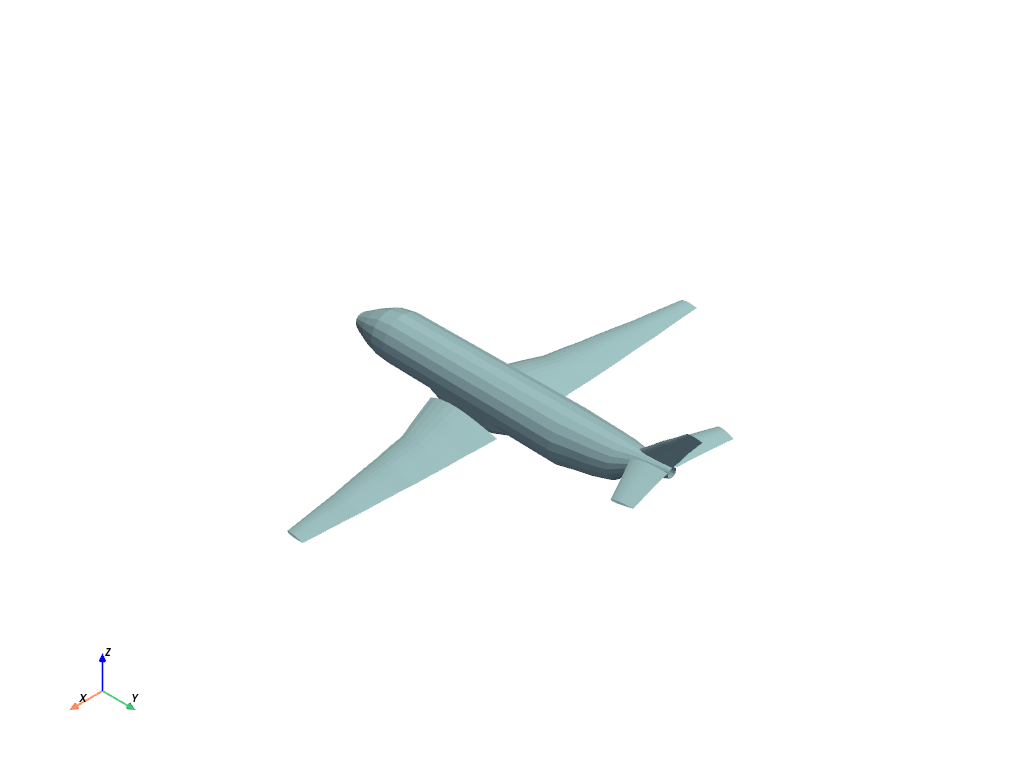
The points from the mesh are directly accessible as a NumPy array:
pyvista_ndarray([[896.994  ,  48.7601 ,  82.2656 ],
                 [906.593  ,  48.7601 ,  80.7452 ],
                 [907.539  ,  55.4902 ,  83.6581 ],
                 ...,
                 [806.665  , 627.363  ,   5.11482],
                 [806.665  , 654.432  ,   7.51998],
                 [806.665  , 681.537  ,   9.48744]],
                shape=(1335, 3), dtype=float32)
The faces from the mesh are also directly accessible as a NumPy array:
mesh.faces.reshape(-1, 4)[:, 1:] # triangular faces
array([[   0,    1,    2],
       [   0,    2,    3],
       [   4,    5,    1],
       ...,
       [1324, 1333, 1323],
       [1325, 1216, 1334],
       [1325, 1334, 1324]], shape=(2452, 3))
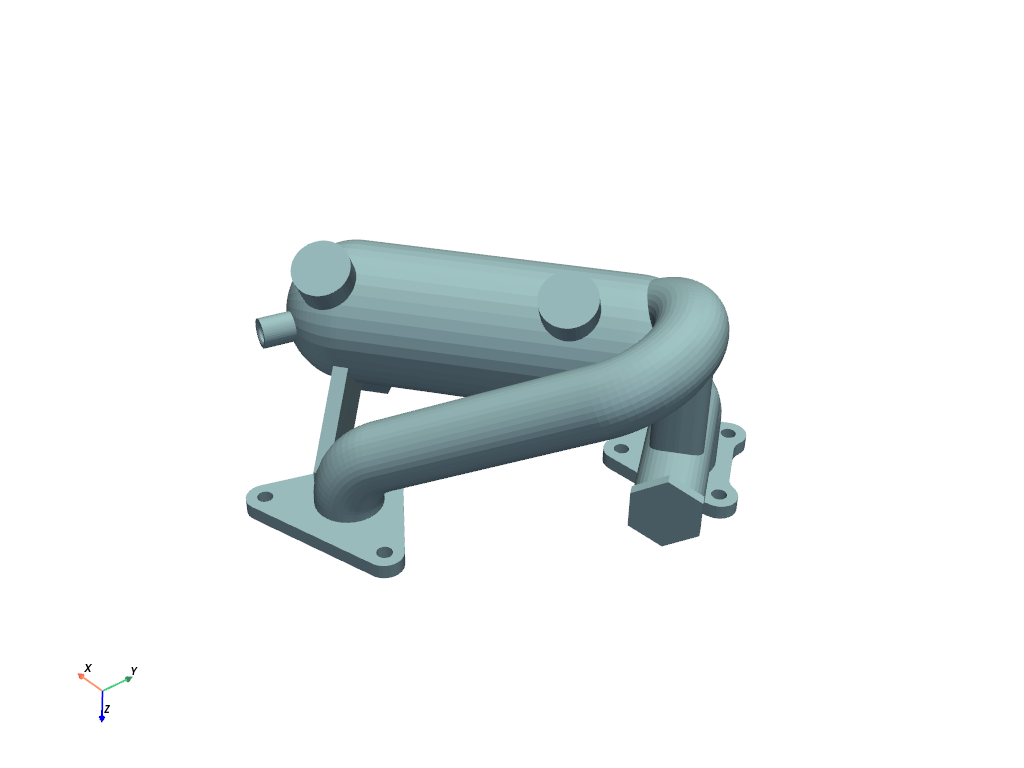
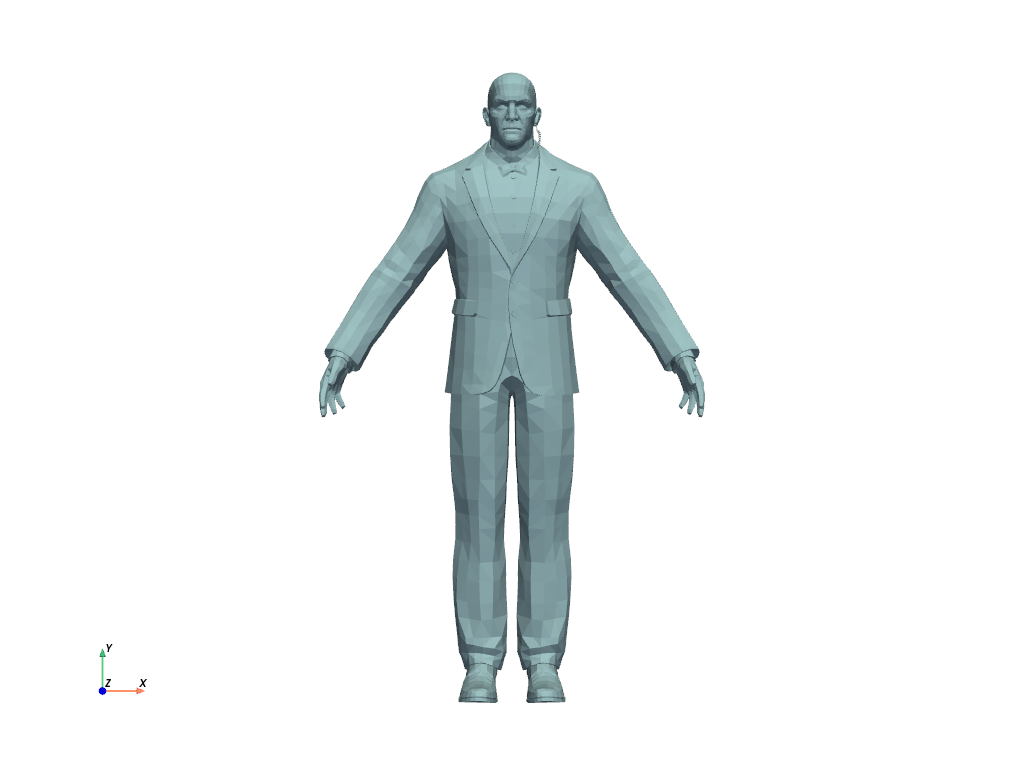
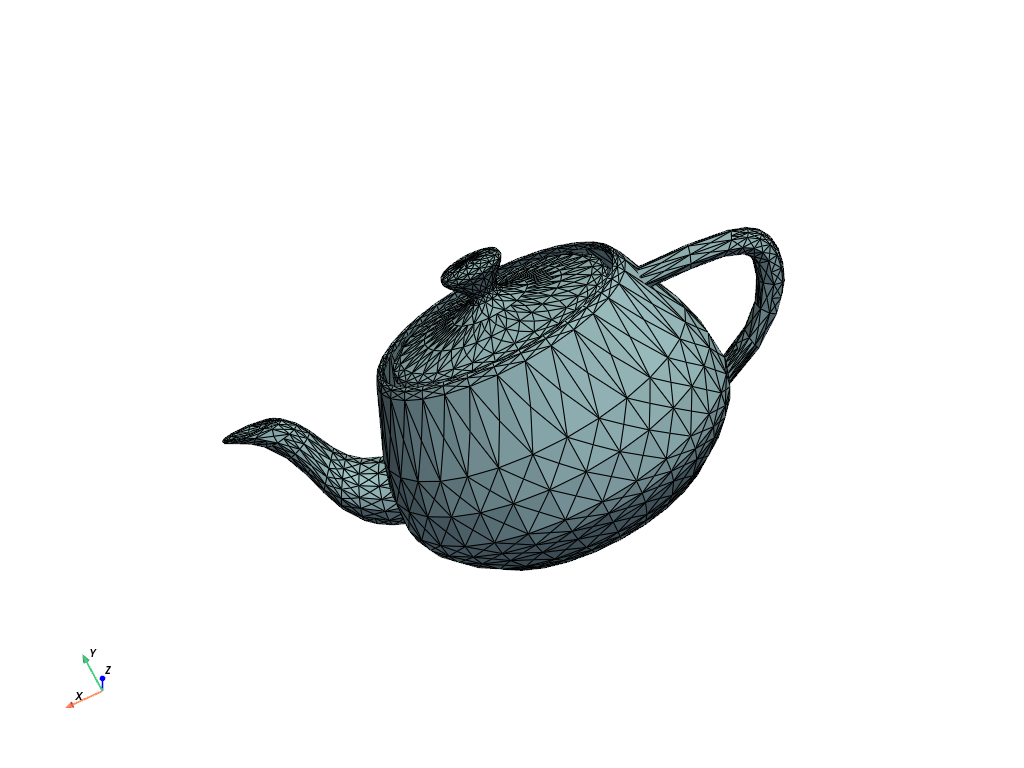
Loading other files types is just as easy! Simply pass your file path to the
pyvista.read() function and that’s it!
Here are a few other examples - simply replace examples.download_* in the
examples below with pyvista.read('path/to/you/file.ext')
Example STL file:
Example OBJ file
Example BYU file
Example VTK file
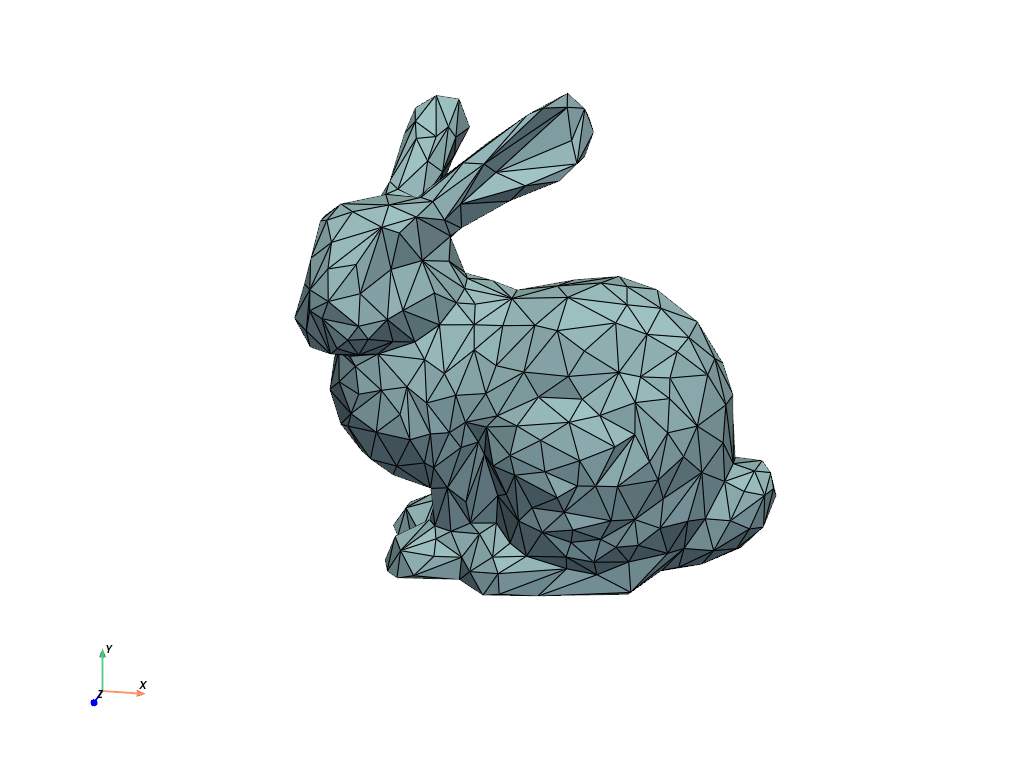
Exercise#
Read a file yourself with pyvista.read(). If you have a supported file
format, use that! Otherwise, download this file:
pyvista/pyvista-tutorial
# (your code here)
# mesh = pv.read('path/to/file.vtk)

Total running time of the script: (0 minutes 5.996 seconds)
